

PDF File Reader
Dream Tools
I usually judge a PDF app by one simple question: can I open a document quickly, read it comfortably, and get back to what I was doing without unnecessary friction? PDF File Reader, developed by Dream Tools, is built around that modest goal. It is a free productivity app for Android that focuses on opening PDF documents rather than trying to become a complete office suite.
That narrow purpose is both its appeal and its main limitation. If you regularly receive manuals, forms, invoices, study notes, tickets, or work attachments and simply need a dependable way to read them, the app is easy to understand. If you expect editing, signing, conversion, cloud collaboration, or serious annotation, you may find the experience too basic. After spending time with it, I see it as a practical reader for everyday access, not a replacement for a full document workspace.
How I use it for ordinary PDF reading
The most useful baseline workflow is straightforward: install the app, open the document list, choose a file, and start reading. That simplicity matters on a phone, where a PDF tool can become frustrating when every action is hidden behind extra menus. The store summary describes the app as a way to open PDF documents, and that is an accurate description of its central role without overselling it.
For a typical day, I would use it when someone sends me a PDF through a messaging app or when I download a document from a browser. Instead of searching for a broad office application, I can use a focused reader to get the file on screen. A useful habit is to open the document once before leaving the download folder. That confirms the file is readable and prevents the familiar situation of discovering an unreadable attachment when I am already offline or in a hurry.
Reading on a phone is rarely as comfortable as reading on a larger display, so I pay attention to how I move through pages. For short files, scrolling is usually the fastest approach. For longer reports, I prefer a repeatable rhythm: skim the first pages, locate the section I need, then read closely instead of treating the whole document like a book. This is not a special feature; it is simply the most efficient way to use a small screen with a focused PDF reader.
Latest News

Uber Eats Under Pressure: What Happens When Delivery Goes Wrong

How QR & Barcode Scanner Adapts to Android and iOS Innovations

Why Waze Navigation & Live Traffic Is Your Essential Travel Companion
CapCut Mastery: Unleash Hidden Features for Pro-Level Editing

How OS Updates Enhance Roblox Adventures

Teacher Simulator: Exam Time Turns Quick Classroom Judgments into a Repetitive Loop
One everyday example is a travel document or appointment form. I might receive it while away from my computer, open it to check the date and address, and close it again. PDF File Reader makes sense in that situation because I do not need to modify the file. The value is quick access, clear enough navigation, and less distraction than a larger application that presents tools I will not use.
The app has also reached a broad audience, with over ten million installs. That does not automatically make it the best reader for every person, but it does suggest that its basic purpose is easy for many Android users to understand. Its average rating is 3.4, which feels consistent with an app that can satisfy a simple reading need while leaving room for complaints from people who expect more advanced document features.
What I check before relying on a document
I do not treat the first successful opening as proof that a file is ready for every situation. PDFs can contain forms, unusual fonts, scanned pages, or layouts that are difficult to read on a phone. My practical approach is to inspect a few pages, zoom into any small text, and make sure the page order looks right. This is especially important for work documents, where a missing-looking image or cramped table can change the meaning of a page.
Gallery
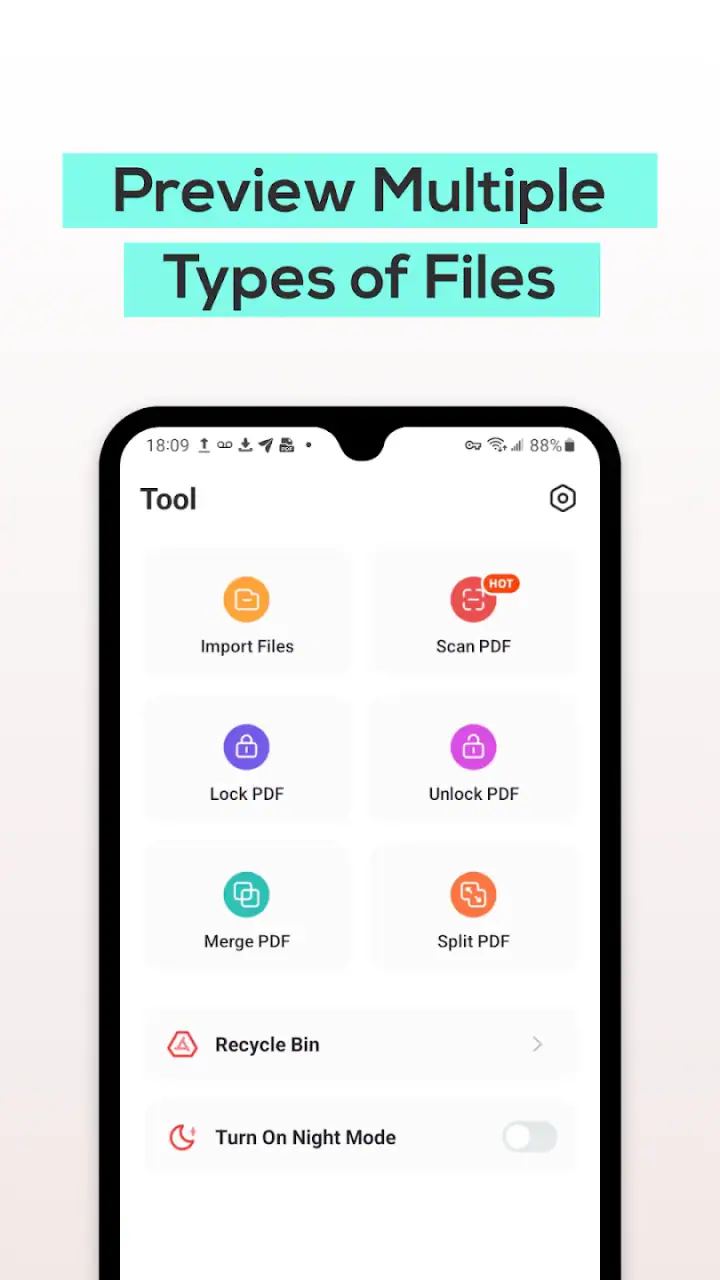
Another useful habit is separating reading from editing. If I only need to view instructions, a receipt, or a reference sheet, a dedicated reader is appropriate. If I need to type into fields, add a signature, highlight passages, or extract content, I switch expectations immediately. A reader may display a document perfectly while still being the wrong tool for changing it.
That distinction answers one question many new users have: can this app replace a PDF editor? In my experience, it should not be chosen with that expectation. Its identity is as a reader in the productivity category. For editing-heavy work, I would use an application designed specifically for forms, markup, signatures, or document creation. Choosing the right tool at the start saves more time than trying to force a simple reader into an advanced workflow.
Settings and habits that make the experience smoother
With a small utility app, settings deserve a quick inspection even when there are not many of them. I look for anything controlling how files are displayed, how documents are selected, or how the app behaves when I return to it. The goal is not to change every available option. It is to remove the one point of friction that appears repeatedly in my own routine.
For example, if I often read documents at night, comfortable viewing matters more than a long list of extra tools. If I mainly open one-page attachments, fast selection matters more than elaborate organization. I recommend testing the app with the kinds of PDFs you actually receive rather than judging it only with a clean sample file. A simple text document, a multi-page report, and a scanned form reveal very different weaknesses.
Device compatibility is also worth considering before installation. The app requires Android 6.0 or later, so it can suit many older phones as well as newer devices. The current version is 1.2.0, and the app was released on October 13, 2024. I would still keep the operating system and app updated through the normal store process, because document handling can depend on how the reader interacts with the phone’s file picker and storage environment.
PDF File Reader is free, which makes it easy to try without turning the decision into a financial commitment. The free price is particularly helpful for occasional readers who do not want to subscribe to a broad office package simply to open attachments. At the same time, free access should not be confused with a promise of professional-grade tools. I would install it for access and reading first, then decide whether its boundaries fit my documents.
The age rating is Everyone, so it is presented as suitable for a general audience. That makes sense for a document viewer, although the content of any PDF still depends on the files a person opens. Parents, students, and older relatives can approach the app without needing a specialized technical background, but the real test remains whether the interface and document display feel comfortable on their particular phone.
A repeatable routine for work, study, and personal files
My preferred routine has three stages. First, I open a new file as soon as I receive it and confirm that it displays correctly. Second, I read only the relevant section if the document is longer than necessary. Third, I close the app and return to the source of the file rather than leaving dozens of documents open mentally as unfinished tasks. This sounds basic, but it prevents PDF reading from becoming a pile of forgotten downloads.
For study, I use the reader as a reference window rather than pretending it is a complete note-taking system. I keep the question or assignment visible elsewhere, consult the PDF for the needed passage, and record my own notes in a separate tool. That division is more efficient than expecting a lightweight reader to manage research, writing, citations, and annotations all at once.
For household paperwork, I use a similar approach. I open a bill or instruction sheet, check the exact information I need, and avoid making decisions based on a tiny preview in a notification. If a page includes a table or a signature area, I enlarge it before acting. The practical insight is that a PDF reader is most valuable when it becomes a reliable checkpoint between receiving a file and responding to it.
Faster patterns for people who open PDFs often
Experienced users do not necessarily use more features; they reduce repeated decisions. I keep the app associated with the task of reading PDFs, so I do not waste time trying several unrelated viewers. When Android asks which application should open a document, choosing a consistent reader can make future access quicker. If I later discover that a particular file needs an editor, I can deliberately choose another tool for that exception.
I also use filenames as part of the workflow. Before opening a crowded download area, I identify the document by its name and source. This is especially helpful when several attachments have similar labels. A reader cannot organize a chaotic file collection for me, so a small amount of naming discipline improves the whole experience more than repeatedly searching inside the app.
Another effective pattern is checking the document while connected to the internet, then keeping the file available on the phone if I know I will need it later. I do not assume that every document will be easy to retrieve again in a train, waiting room, or building with poor reception. The app helps me read a local PDF, but the reliability of the overall workflow still depends on where the file was saved and whether I can reach it when needed.
When a PDF is long, I avoid reading every page in order unless the document is genuinely sequential. I first look for headings, page changes, and the section that answers my immediate question. This is particularly useful with manuals and policy documents. A focused reader supports this behavior because it lets me concentrate on access and navigation instead of tempting me into a complicated document-management process.
There is also a useful trade-off in keeping this app as a dedicated reader. A broad office application may offer more capabilities in one place, but those capabilities can add visual clutter and make a quick open feel heavier. PDF File Reader is better when the task is “show me this file now.” The broader alternative is better when the task is “help me revise, share, sign, convert, and manage this file.” Neither approach wins universally.
Where the simple approach saves time
Imagine receiving a twenty-page equipment guide before using a device. I would open it, jump through the pages until I find the setup section, enlarge the diagrams, and keep the phone beside me while following the instructions. I would not need a word processor, a cloud editor, or a signing tool. In that scenario, a focused reader reduces the number of decisions between the document and the information I need.
The same applies to a student checking a course handout, a renter reviewing a building notice, or a worker opening a reference sheet on a phone. The app is useful when the document is already finished and the reader’s job is to inspect it. That is the key use case I would recommend to a friend: finished PDFs, quick access, and no need to alter the original.
However, I would not recommend it as the only document app for someone whose daily work revolves around PDFs. A person who marks up contracts, completes applications, signs forms, or sends revised versions needs a more capable tool. Installing a reader alongside an editor can be sensible, but relying on this app alone for those workflows would create unnecessary switching and frustration.
Limits that matter before making it your main PDF tool
The biggest limitation is not a defect in opening a file; it is the narrowness of the job. Reading and editing are different activities, and the app’s positioning points toward the former. If your documents are mostly scanned images, very dense tables, or forms with interactive fields, you should test your usual files carefully before making it your default. A document can open successfully and still be awkward to use.
Small-screen reading is another practical boundary. Even a competent viewer cannot make a complex desktop layout feel spacious on a phone. I often need to zoom and move across wide pages, which is acceptable for checking a detail but tiring for extended reading. For long reports, a tablet, laptop, or larger monitor remains the better choice. The app can provide access in a pinch, but access is not the same as comfort.
I would also avoid assuming that a PDF reader will solve file organization. If your phone contains years of downloads, the difficult part may be locating the right document rather than displaying it. Creating sensible folders or cleaning old files is still necessary. This is one of the less obvious trade-offs: a focused app can make opening easier while leaving the surrounding storage habits entirely in your hands.
Another question is whether the app is suitable for sensitive documents. I use ordinary caution with any application that opens personal paperwork. I avoid downloading confidential files unnecessarily, check that I am opening the intended attachment, and remove documents I no longer need. The reader’s convenience should not replace basic phone security and file-management habits.
Because the app is free and aimed at general use, I would also compare it with the PDF viewer already available on your phone. Many Android devices can open PDFs without installing anything extra. PDF File Reader earns its place when its workflow feels clearer or more convenient for you, not merely because it can perform the same basic action. If the built-in option already opens your documents comfortably, switching may offer little benefit.
Who should choose it, and who should skip it
I think it is a good match for occasional readers, students checking finished materials, families opening downloaded forms, and Android users who want a simple productivity utility. It is also a reasonable secondary app for people who already have an editor but want a less complicated way to inspect ordinary PDFs.
I would skip it as a primary solution if your work depends on document editing, signatures, detailed annotations, text extraction, conversion, or collaborative review. In those cases, a dedicated PDF workspace or office suite is more appropriate. I would also choose a larger screen for extended reading of technical documents, regardless of which viewer I installed.
The rating of 3.4 from around 5.7 thousand ratings gives me a balanced impression rather than a reason to dismiss the app. It is popular enough to be familiar to many users, but the middling average suggests that expectations and real needs vary. I would interpret that as a reminder to judge it against your own workflow: simple opening may be all you need, while advanced users may quickly notice the boundaries.
My verdict after building a practical routine
PDF File Reader is strongest when I treat it as a focused doorway into finished documents. It does not need to compete with a full office suite to be useful. Its free availability, broad Android compatibility, and clear purpose make it easy to try, especially when I want a straightforward way to open a PDF rather than a collection of tools for changing one.
The best results come from combining the app with disciplined habits: inspect new files before you need them, keep filenames and folders manageable, use it for reading rather than editing, and switch to a larger screen when the layout demands it. Those habits reveal its real strength. The app handles the immediate viewing task while I handle organization, judgment, and the choice of a different tool when the document requires more.
My recommendation is therefore specific. Install PDF File Reader if your main problem is getting ordinary PDFs open quickly on an Android phone. Give it a short trial with the documents you actually receive, not only simple sample files. If those files are finished documents that you read and close, it can be a useful everyday companion. If your workflow begins after reading—with signing, revising, highlighting, or sharing edited copies—choose a more advanced PDF application instead.
FAQs for PDF File Reader
What are the key features of the PDF File Reader app?
The PDF File Reader app offers a variety of features including easy document viewing, text search, annotation tools, and cloud integration for seamless access across devices. Users can also enjoy customizable reading modes, bookmarking, and the ability to fill out forms directly within the app. It's designed to enhance productivity and document management.
Does the PDF File Reader support editing of PDF documents?
While the PDF File Reader app primarily focuses on viewing, it does offer basic editing capabilities such as annotation, highlighting, and adding comments. However, extensive editing like altering text or images may require a more specialized PDF editor. It's ideal for users who need to make quick annotations or notes.
Is the PDF File Reader app free to use?
The PDF File Reader app typically offers a free version with essential features for viewing and annotating documents. However, premium features such as advanced editing tools, cloud storage integration, and ad-free experiences may require a subscription or one-time purchase. Users should check the app store for specific pricing details.
Is the PDF File Reader compatible with all devices?
Yes, the PDF File Reader app is designed to be compatible with both Android and iOS devices, ensuring users can access their documents on smartphones and tablets. The app is regularly updated to support the latest operating systems, providing a smooth and reliable user experience across different platforms.
How secure is the PDF File Reader app for sensitive documents?
Security is a priority for the PDF File Reader app. It includes features such as password protection for documents and supports encrypted files. Users are encouraged to enable these security options to safeguard their sensitive information. Regular updates also ensure that the app remains compliant with the latest security standards.
Pros
- Easy-to-navigate interface for quick access.
- Supports various file formats beyond PDFs.
- Fast loading times for large documents.
- Annotation tools for efficient note-taking.
- Offline access to downloaded files.
Cons
- Ads may interrupt the reading experience.
- Limited free features; premium needed for more.
- Occasional crashes on older devices.
- Sync issues with cloud services.
- Limited customization options for appearance.


